
Caesar is a popular economic strategy of the late 90s and early 2000s. Unfortunately, there is no” natural ” Caesar for Linux and even no free one yet, but this wonderful game can be played using WINE.
In the game Caesar 3, you will manage the development of the Roman city, creating places for housing, recreation and work of citizens, thereby increasing its number and well-being. I think there are few fans of computer games not familiar or at least heard about this game.

Caesar 3-Main Menu
You start with an empty field and a single road and begin to build up the area with places for residential buildings, adding prefectures and engineering structures to protect the residents and hire workers. Then gradually add more and more buildings to produce food, build larger dwellings, trade, and make a profit for the glory of the gods and the emperor!

Caesar 3-The Game
The game is not free, on the Internet the licensed version can be purchased for 300-500r. If you decide to turn to torents then it is on your conscience 😉
Installing the game Caesar 3 under WINE
You must already have the latest version of wine installed (how to install the latest version of wine). To begin with, I copied the contents of the CD into one folder, so that I wouldn’t have to paste it every time I accessed it. Next, install the game in the usual way by running setup.exe from the root of the folder to which you copied the contents of the CD. You can do this either by double clicking from the nautilus window or in the terminal go to the folder and run the command:
wine setup.exe
The standard window for installing the program opens, just like in Windows. Answer all questions by default.
If when trying to launch from the Nautilus window, the halyard setup.exe you will get this error:

No attribute to start the program
Then you need to set the attribute (exec bit) in the file properties. To do this, right-click on the file, then select the “Properties” menu item . Then, on the “Rights” tab, check the box “Allow file execution as a program”.»

Setting the attribute to start the program
After installation, the program will appear in the menu ” ApplicationsWinePrograms”. Now you need to connect the folder containing the files from the game’s CD-ROM as a virtual CD-ROM for Wine. To do this, run the Wine setup (ApplicationsWineSetting up WINE) and go to the Disks tab. Click Browse and select the folder containing the contents of the Caesar 3 CD-ROM. Then click Show Advanced Options and specify the CD-ROM disk type. Then click the ” Add ” button.»

CD-ROM emulation in Wine
Possible problems with running Caesar 3 in Wine
That’s all for today. Have a nice game of Caesar!
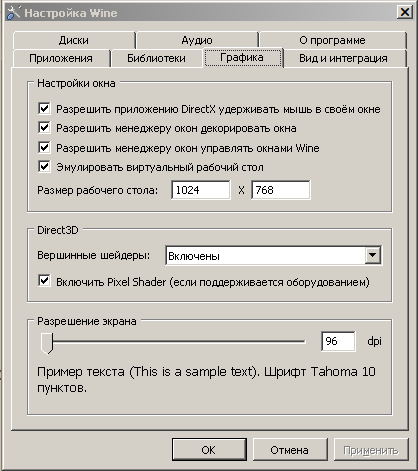
UPD: It’s also useful to pre-configure wine
