Just like in Photoshop, Gimp has its own file saving format, which saves not only the image itself, but also the objects on it, such as layers, and then you can edit, move and interact in any way, as if you did not open the saved file, but just continue working with it.
But if you need a ready-made image, this format is not suitable. The image will need to be saved in one of the popular formats, for example, PNG, GIF or JPEG. In this article, we will look at how to save in gimp in jpg format.
How to save as JPG in Gimp
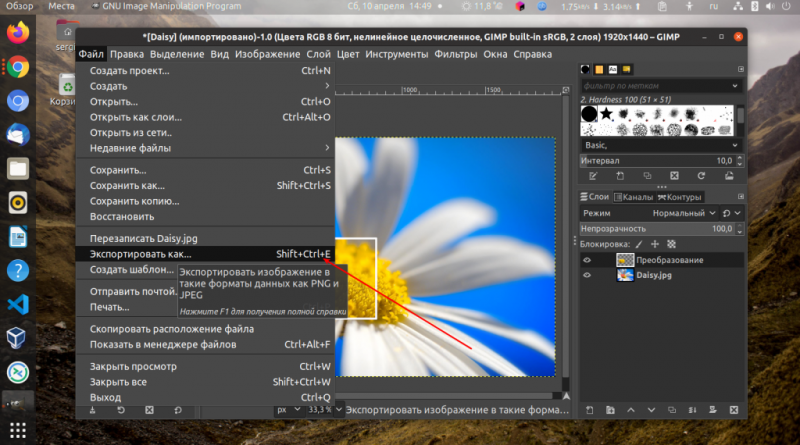
If you press Ctrl+S or open the File -> Save menu, the image will be saved in the Gimp – XCF format. To save it in JPG format, press Ctrl+Shift+E or open the File menu – > >Export as.
In the window that opens, select the file format. If you have edited any file in PNG or JPG format, the program will try to determine the format based on the extension. Simply.jpg after the file name and clickExport.
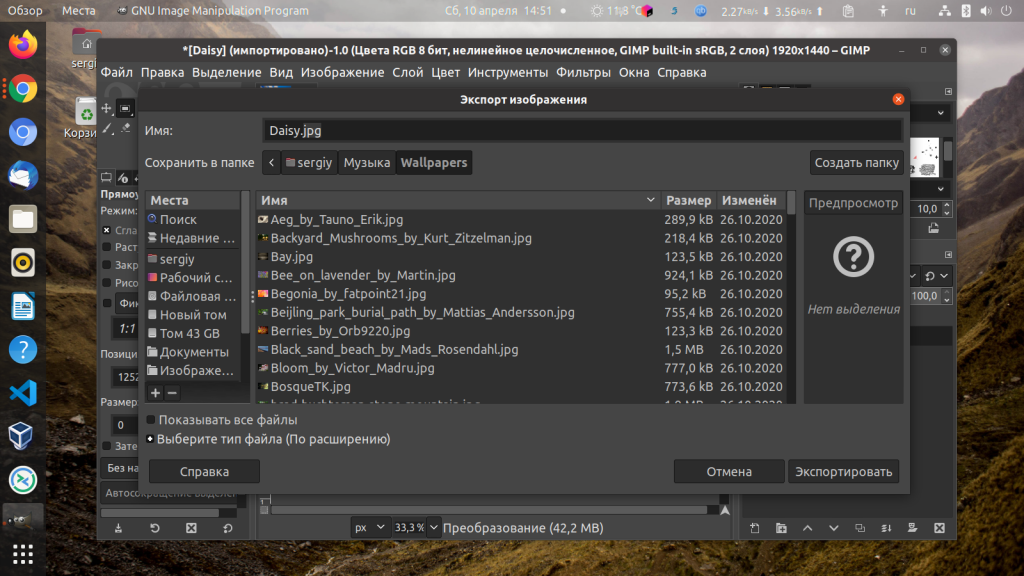
There is another way. If you uncheck the box next to the itemSelect the file type (By extension) at the bottom of the window, you can specify the format yourself:
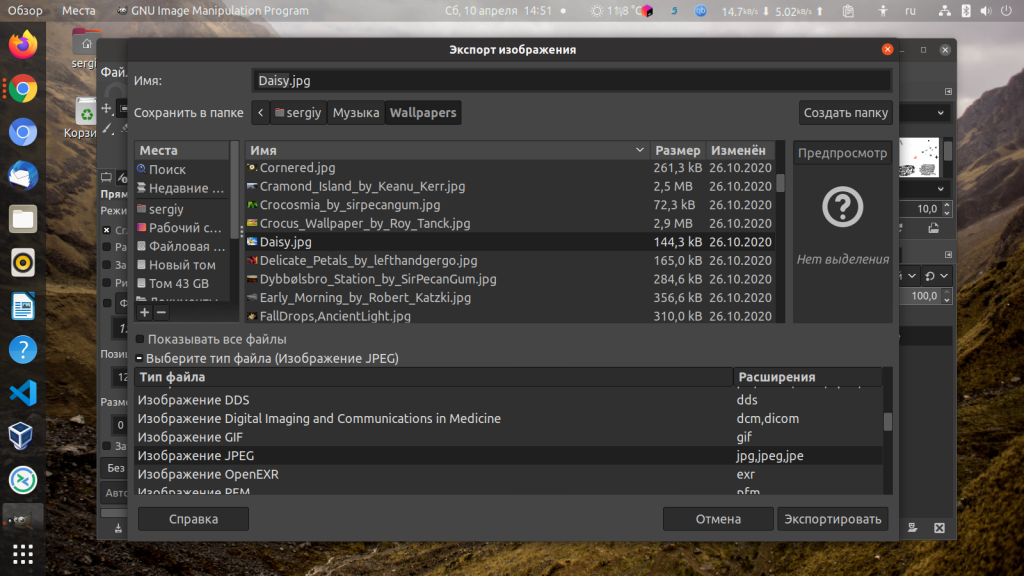
After clicking the Export button, you still need to select the image quality. You can leave it as default:
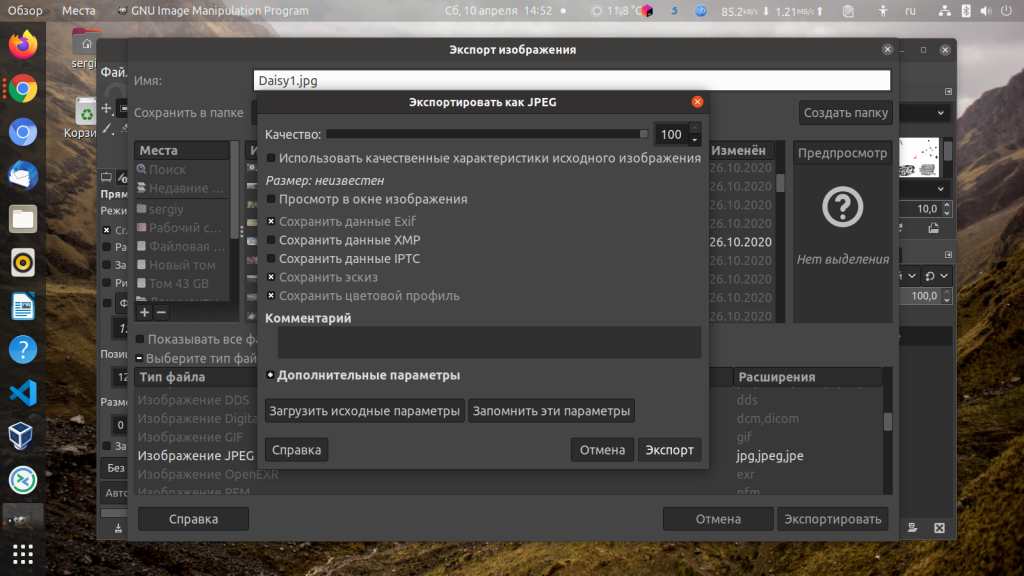
Then tap againExport. After that, the file will be saved and will appear in the folder you selected. By default, the folder is usedDocuments. In this short article, we’ve covered how to save to jpg Gimp. It’s very simple.
 Top Temporary VPS for Testing & Experiments (2026)
Need a fast cloud server for a few hours or days? Deploy an isolated testing environment, run your scripts, and destroy it without any monthly commitments. Secure payments via Crypto (USDT) & PayPal supported.
• Exclusive Welcome Bonus: Get an extra 15% on your first balance top-up within 24 hours after registration.
• Best-in-class Storage VDS configurations with huge disk space for heavy data testing.
• High-speed hardware platform with a stable presence in the Netherlands (Europe).