
The Ubuntu operating system is designed to be used on behalf of one specific user. It is not necessary to change the user in the course of work so often. You usually enter your username and password when you log in, and then use it until it’s time to turn off the computer.
If you need to perform any actions with administrative privileges, then there is sudo for this. However, sometimes you need to change the Ubuntu user. In this article, we will talk about how to do this in the GUI and in the terminal.
How to change a user in Ubuntu
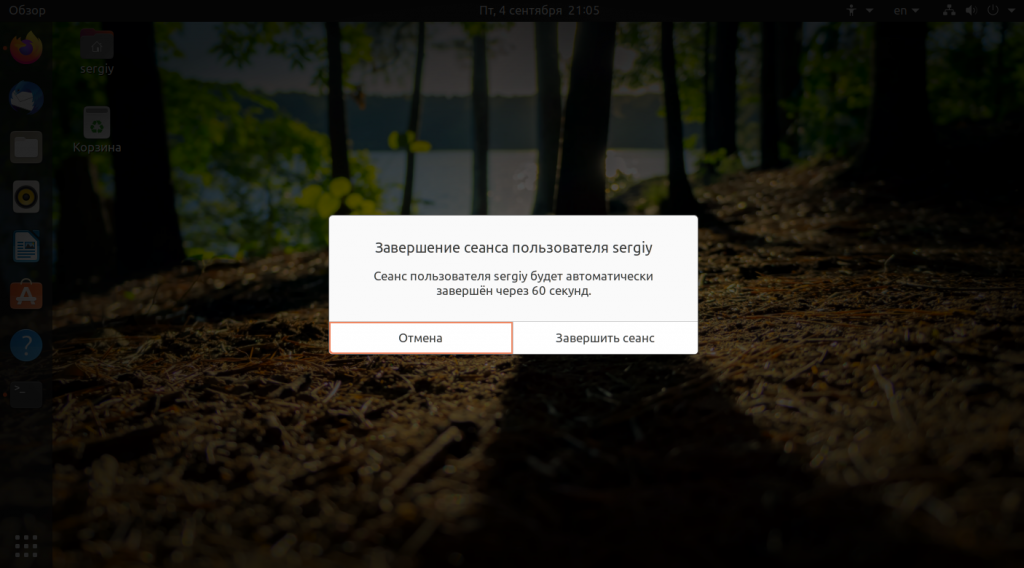
First, click on the shutdown icon in the upper-right corner of the screen and select End session or Change User:
Then confirm the end of the session or the shift:
Next, you will see the usual login window, where you can select a user from the list or enter their username in the input field. You will then find yourself back on the Ubuntu desktop.
Now let’s talk about how the user change is performed in the terminal. To do this, use the su command. For example, to change the user to losst, just run:
su losst
The utility will ask for the password of the user losst and then open a command prompt on his behalf:
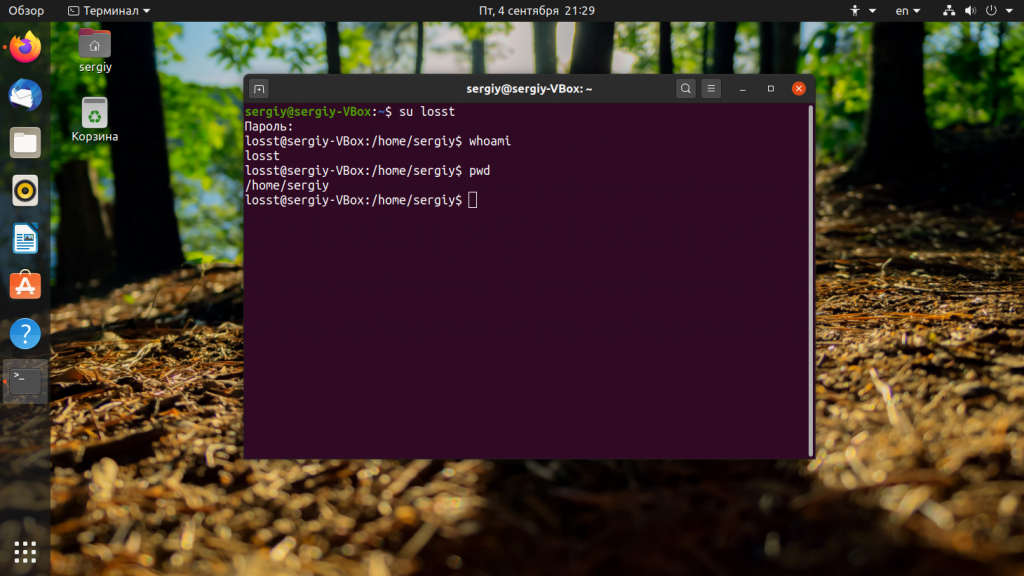
If you want the path to the home folder and all other environment variables for the user to be updated, use the-l or –login option. Instead, you can also simply add a dash “-“. For example:
su - losst
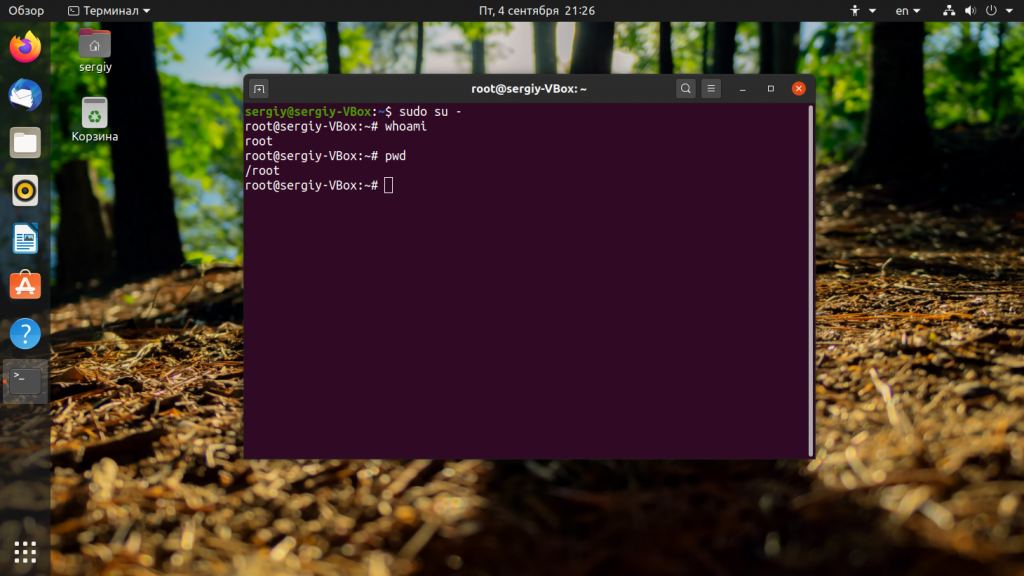
If you run the utility without parameters, you will be logged in as the root user. But since the root password is not set by default, you should add sudo before it:
sudo su -
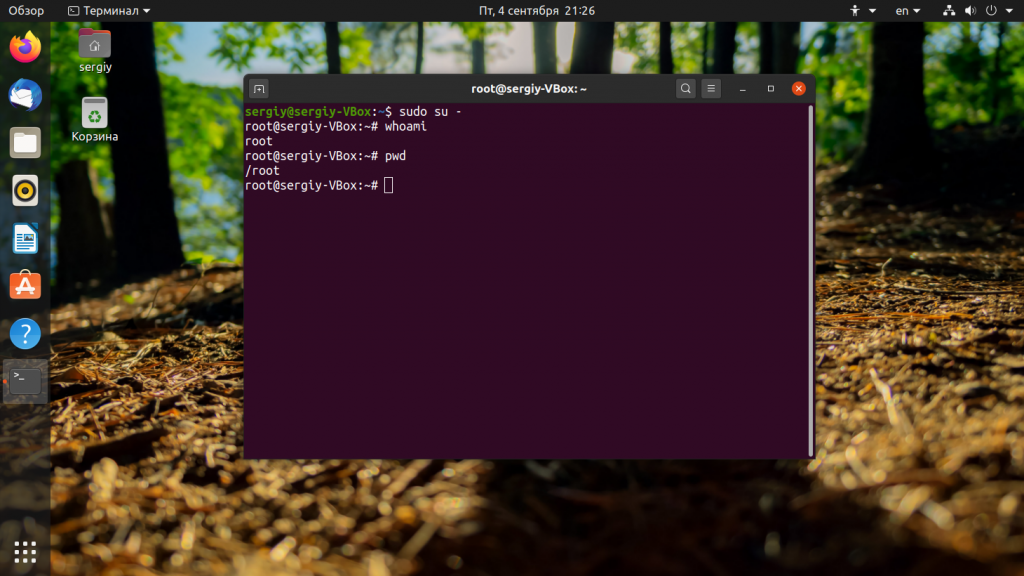
In this case, sometimes it is better to use the -i option of the sudo command:
sudo -i
In this article, we looked at how to change the user in Ubuntu, as you can see, everything is very simple here. If you still have questions, ask in the comments!
Troubleshooting: “user is currently used by process”
When you try to rename a user or change their UID, you might encounter this error: usermod: user <username> is currently used by process <PID>
This happens because the system cannot modify an account that has active sessions or background processes. Here is how to fix it:
1. Kill all user processes The fastest way to terminate everything associated with the old user is using pkill:
sudo pkill -u oldusername
sudo pkill -9 -u oldusername
2. Check for remaining processes If the error persists, find out exactly what is still running:
sudo ps -u oldusername
Common culprits are often tmux, screen sessions, or systemd user services.
3. Log out other sessions If you are logged in as that user via SSH or a desktop environment, you must log out. You cannot rename the user you are currently logged in as. Log in as a different sudo user or root to perform the operation.
4. The “Nuclear” Option (Use with caution) If a process keeps restarting, you might need to temporarily stop the service or use:
sudo killall -u oldusername




Useful guide, especially the part about the home directory. One thing I ran into: after renaming the user, I had some custom scripts in /opt/ and /var/www/ that were still owned by the old UID/GID because they weren’t in the home folder. I had to run a recursive chown to fix permissions: find / -user oldname -exec chown newname {} +. It might be worth mentioning for those who have services running outside of /home/. Thanks for the write-up!
Solid tutorial. One thing to add for developers: if you’re using SSH keys, don’t forget to check your authorized_keys path and any hardcoded paths in scripts or cron jobs. After I renamed my user, a few of my automation scripts broke because they were still pointing to /home/oldname/. A quick grep through the home folder helps a lot after the rename.
Thanks for the guide! I was stuck on the “usermod: user is currently used by process” error for a while. For anyone else struggling with this: make sure to log out completely and run the commands from a different sudo user or the recovery console. I had to use pkill -u oldusername before it finally let me change the name. Great tip about the home directory move, by the way!
I followed this guide on Ubuntu 22.04 and it worked, but I want to add one important detail for anyone renaming their main account. You cannot change the username while logged into that same user — you must log in as another admin user (or root via recovery mode), otherwise usermod will fail or leave things in an inconsistent state.
Also, if you want everything to match properly, don’t forget to rename the home directory and user group as well. After changing only the login name, some apps still referenced the old /home/oldname path. Using usermod -d /home/newname -m newname fixed that for me.
Finally, make a backup first. Changing usernames on Linux can break configs that store absolute paths.