Many new Linux users, only Windows converts, interested, where is task Manager in Ubuntu. Anyway, what should I do if a program is not responding. But that’s the thing – no in Ubuntu task Manager, but there is a system monitor and a couple of very useful console commands.
And the system hangs very rarely, hover can only desktop environment, and that, if anything namudrit settings. Read more about what to do in such cases, read the article what to do if hangs Ubuntu, but for now let’s talk about the task Manager.
The task Manager Ubuntu
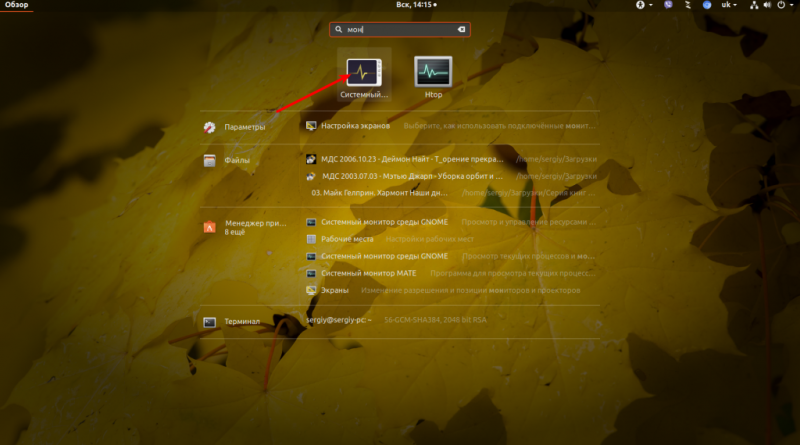
To start performance monitor, open the main menu system by typing the monitor or the monitor:
It’s just like any task Manager you can view the list of running processes, terminate processes, monitor usage of memory, CPU and file systems. For this the program has three tabs:


To terminate the program click on it in the list, right-click and select:

If this is not completed, can choose in the same menu to Kill. Read more about this in the article how to kill process Linux.
But if floating desktop environment, the system monitor will not help, in this case, you can use the whole power of the Linux terminal. By default, the system offers 7 independent terminals, one of which runs the desktop environment. Usually this is the seventh terminal. You can switch between them using shortcut keys Ctrl+ Alt + number terminalto access the first terminal you press Ctrl+Alt+1 , etc.:

Here you need to login, putting first the username, then the password. After login you can do anything, for example, to restart the graphical environment with the command:
sudo systemctl restart display-manager
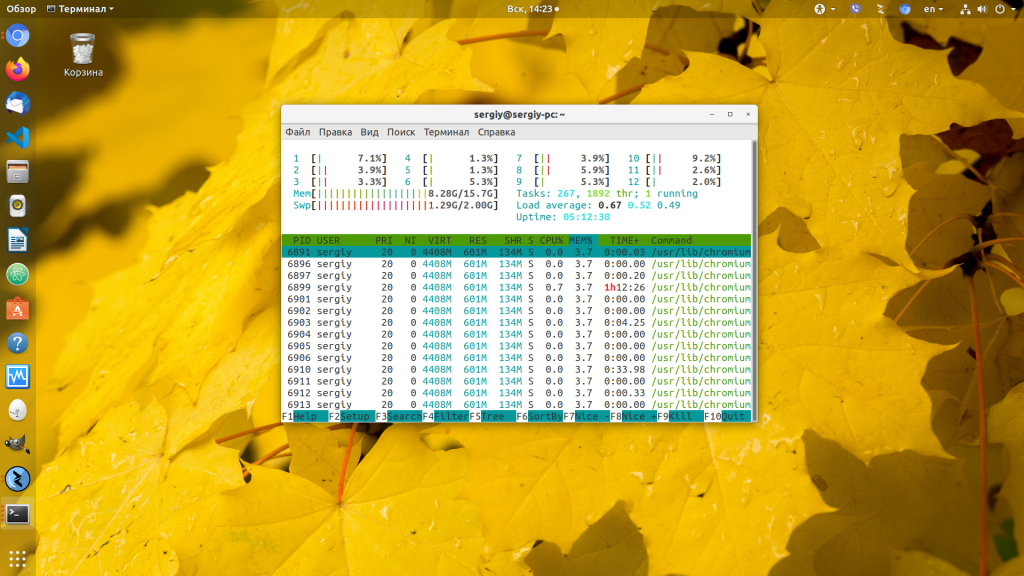
If you need the equivalent of task Manager in terminal, can use the htop. To install it run:
sudo apt install htop
Then you can run the same command:
htop
If you need to complete specific application, it is easier to find with the command:
ps aux | grep appname
Then complete it with the command:
sudo kill-TERM pid_приложения
Where pid_приложения — unique application identifier in the system that you learned in the previous command, in the second column:

That’s about it. I wish you that your system never hung.
 Top Temporary VPS for Testing & Experiments (2026)
Need a fast cloud server for a few hours or days? Deploy an isolated testing environment, run your scripts, and destroy it without any monthly commitments. Secure payments via Crypto (USDT) & PayPal supported.
• Exclusive Welcome Bonus: Get an extra 15% on your first balance top-up within 24 hours after registration.
• Best-in-class Storage VDS configurations with huge disk space for heavy data testing.
• High-speed hardware platform with a stable presence in the Netherlands (Europe).