Webmasters or website owners often need to compare two files by content. From this article, you will learn how to compare two files with each other. Here are described all methods known to me for comparing text files and scripts (html, css, php and so on).
- Method 1. Meld
- Method 2. Comparing the contents of two files in the WinMerge program.
- Method 3. diff
- Method 4. Kompare
- Method 5. Comparison of files in the Total Commander program
- Method 6. Comparison of files in Notepad++
- Method 7. Using built-in Windows tools (PowerShell and CMD)
- Option 1. PowerShell (modern standard)
- Option 2. Command line (classic fc)
- What to choose?
- Method 8. Comparison of two text files with the comm utility in Unix
- Method 9. Using online tools for file comparison
- Method 10. Using Git for comparing files
- Tips for effective file comparison
- Conclusion
Method 1. Meld
Meld – a graphical tool for obtaining differences and merging two files, two directories. Meld is a visual tool for comparing and merging files and directories for Linux. Meld is oriented, first of all, for developers. However, it can prove useful to any user in need of a good tool for comparing files and directories.
In Meld you can compare two or three files, or two or three directories. You can browse a working copy from popular version control systems, such as, such as CVS, Subversion, Bazaar-NG and Mercurial. Meld is presented for most linux distributions (Ubuntu, Suse, Fedora, etc.), and is present in their main repositories.
# apt install meld
Meld exists under Windows too, but I do not recommend using it in this operating system.
Method 2. Comparing the contents of two files in the WinMerge program.
- Homepage: WinMerge
- Supported operating systems: Windows
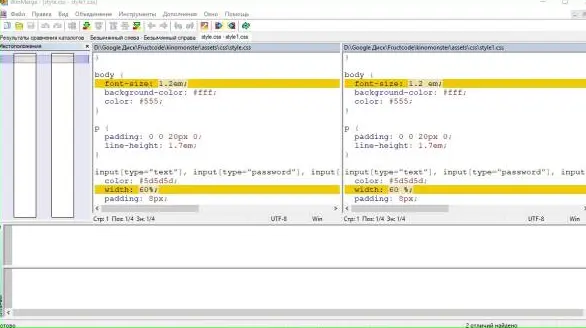
The free program WinMerge allows comparing not only the content of files, it also compares the content of entire folders. WinMerge is an Open Source tool of comparison and merging for Windows. WinMerge can compare both files and folders, displaying differences in a visual text form, which are easy to understand and process.
After installation, open the menu item “File” — “Open”. Choose files for comparison. For this, click on the “Browse” button and choose the file. Having chosen the files, click on the “OK” button.
In WinMerge you can also edit files. After closing the comparison window, the program will suggest saving changes in the files.
Method 3. diff
diff – a utility for file comparison, outputting the difference between two files.
- For comparing directories use this command:
$ diff -qr <current-directory> <backup-directory>
Method 4. Kompare
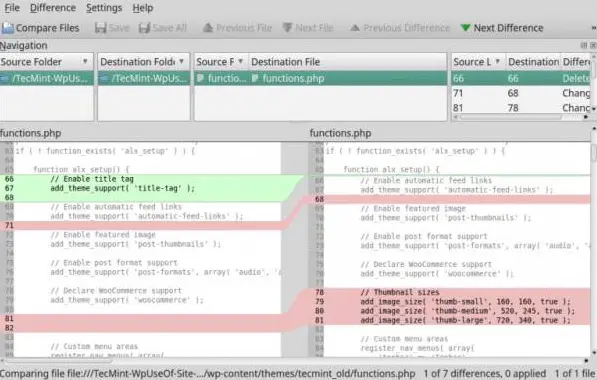
Kompare – displays differences between files. Knows how to compare the contents of files or directories, and also create, show and apply patch files. Kompare — is a graphical utility for working with diff, which allows finding differences in files, and also merging them. Written in Qt and intended primarily for KDE. Here are its main features:
- Support for several diff formats;
- Support for comparison of linux file and directories;
- Support for viewing diff files;
- Customizable interface;
- Creation and application of patches to files.
Method 5. Comparison of files in the Total Commander program
- Supported operating systems: Windows
In Total Commander there exists a tool for comparing files by content, where you can not only compare content, but also edit it and copy from one file to another.
After launching Total Commander – in one of the panels choose (Insert key) the first file for comparison – in the second panel open the folder with the second file and put the cursor on it. Call the program for comparison: “Files->Compare by content”.
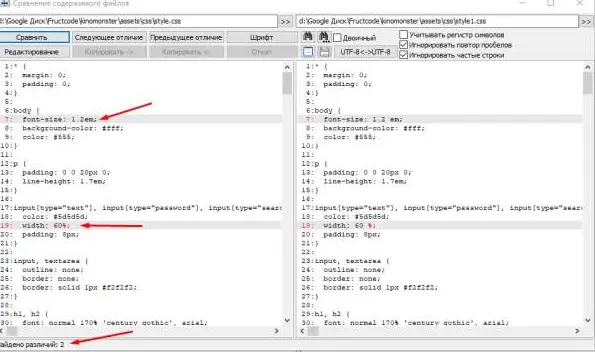
To make changes to the file it is enough to click on the “Edit” button. In the program, functions of copying and rollback, search and change of encoding are available. If you made changes to the file, then after closing the comparison window, it will be suggested to save changes.
Method 6. Comparison of files in Notepad++
- Supported operating systems: Windows, launch in Linux is possible
Notepad++ does not know how to compare files. For the appearance of this functionality in Notepad++ you need to install the “ComparePlus” plugin.
Launch the editor – go to the menu item “Plugins” — “Plugins Admin”. In the new window choose the plugin “ComparePlus” and press the “Install” button.
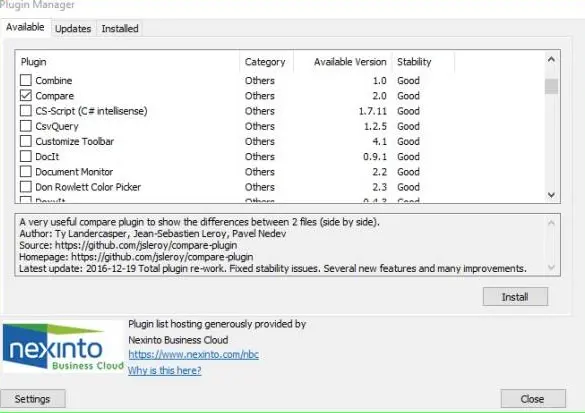
After installing the plugin open two files and select the menu “Plugins” — “Compare” — “Compare (Alt+D)”. The result of file comparison will be presented in separate panels. Opposite the lines in which differences are found there will be a warning sign.
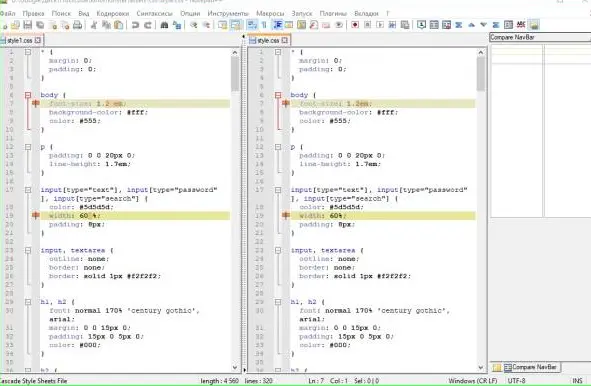
Method 7. Using built-in Windows tools (PowerShell and CMD)
In modern versions of Windows (10, 11 and Server) for quick reconciliation of files it is convenient to use built-in tools. This allows doing without installing third-party software when you just need to check data integrity or find differences in configs.
Important: These methods are intended exclusively for finding differences. Unlike graphical programs, console commands do not allow editing files in the process of comparison.
Option 1. PowerShell (modern standard)
PowerShell — is the main tool of system administration in 2026. The command Compare-Object allows comparing the contents of files as objects.
- Press Win + X and choose Terminal or PowerShell.
- Enter the command:
Compare-Object (Get-Content "path_to_1_file") (Get-Content "path_to_2_file")
How to read the result:
- SideIndicator (=>): the line is present only in the second file.
- SideIndicator (<=): the line is present only in the first file.
Lifehack: For a quick check you can use a short pseudonym (alias):
diff (gc file1.txt) (gc file2.txt)
Option 2. Command line (classic fc)
If you need to quickly compare text files in the classic console (cmd.exe), use the proven command fc (File Compare).
- Press Win + R, enter cmd and press Enter.
- Enter the command:
fc /N "path_to_file_1" "path_to_file_2"
The key /N turns on the display of line numbers, which significantly facilitates the search for differences in large documents.
What to choose?
- PowerShell — recommended for deep analysis and automation. It more accurately processes encodings and data structure.
- CMD (fc) — suitable for instant checking of simple text or configuration files.
Method 8. Comparison of two text files with the comm utility in Unix
Unix utility comm is included in the standard delivery of all Unix-distributions, such as FreeBSD, GNU/Linux (GNU Coreutils package) and others.
The program comm is used for line-by-line comparison of two text files with lines sorted alphabetically, in accordance with the used locale. For sorting you can use the sort utility.
When called without parameters, the utility under consideration will output lines in three columns: the first column will contain lines present only in file 1, the second column — lines present only in file 2, and the third column — lines present in both files. The utility supports parameters -1, -2 and -3, allowing not to output columns under corresponding numbers. The exit status of the utility does not depend on the result of line distribution by columns; in case of successful line distribution the utility finishes work with a zero status, in case of any error — with a non-zero one.
The basic syntax of the command looks as follows:
$ comm [parameters] <file 1> <file 2>
Launch parameters: -1 Suppress output of the first column; -2 Suppress output of the second column; -3 Suppress output of the third; -i Case-insensitive comparison of lines.
Examples of launching the comm utility for comparing two files by content:
- comm -1 file1 file2 compare contents of two files, not displaying lines belonging to file ‘file1’
- comm -2 file1 file2 compare contents of two files, not displaying lines belonging to file ‘file2’
- comm -3 file1 file2 compare contents of two files, removing lines occurring in both files
- launching comm with preliminary sorting:
comm <(sort file1.txt) <(sort file2.txt)
- In text files unwanted characters are often found, such as carriage return character, Windows-style end of line character, space or tab characters. The most reliable option would be to filter out all such unwanted characters, and since the data are strictly numeric, it is quite easy to do, for example, with the help of sed (example of cutting out unwanted characters:
sed 's/[^0-9]//g' < input > output
In the end we get such a command:
comm <(sed 's/[^0-9]//g' file1.txt | sort) <(sed 's/[^0-9]//g' file2.txt | sort)
Method 9. Using online tools for file comparison
Besides local programs and utilities, there exist convenient online services for file comparison:
- Diffchecker: Allows comparing text, images and PDF files directly in the browser. Supports syntax highlighting for various programming languages.
- Text Compare!: Simple tool for quick comparison of two texts online. Convenient for small fragments of code or text.
- DiffNow: Offers comparison of files of various formats, including archives. Has a function of uploading files from a computer or by URL.
Method 10. Using Git for comparing files
The version control system Git provides powerful tools for comparing files:
git diff file1.txt file2.txt
This command will show differences between two files in patch format. For a more convenient visual comparison you can use a graphical interface:
git difftool file1.txt file2.txt
Tips for effective file comparison
- Preliminary preparation: Before comparison ensure that files have the same encoding and line break format.
- Ignoring spaces: Many tools allow ignoring differences in spaces and tabs, which is useful when comparing code.
- Comparison of large files: For voluminous files use tools with support for line-by-line comparison to reduce the load on the system.
- Security: When using online services for comparing confidential data, ensure their reliability and privacy policy.
Conclusion
Comparing files by content is an important skill for webmasters, developers and system administrators. In this article we reviewed the most effective ways of performing this task both in Windows and in Linux. From graphical tools such as Meld and WinMerge, to command utilities like diff and comm – each method has its advantages.
The choice of a specific tool depends on your needs, operating system and interface preferences. Graphical solutions are, as a rule, more convenient for visual comparison and editing, while command utilities are excellent for automation and working with large volumes of data.
Regular practice of using these tools will help you quickly find differences between files, which is especially useful when debugging code, comparing document versions or checking data integrity. Regardless of the chosen method, mastering file comparison skills will significantly increase your productivity in working with digital content.
 Top Temporary VPS for Testing & Experiments (2026)
Need a fast cloud server for a few hours or days? Deploy an isolated testing environment, run your scripts, and destroy it without any monthly commitments. Secure payments via Crypto (USDT) & PayPal supported.
• Exclusive Welcome Bonus: Get an extra 15% on your first balance top-up within 24 hours after registration.
• Best-in-class Storage VDS configurations with huge disk space for heavy data testing.
• High-speed hardware platform with a stable presence in the Netherlands (Europe).