CloudPanel is a free software for server configuration and management with an obsessive focus on simplicity. Run static websites, PHP, Node.js, reverse proxies, and Python applications.
Important note: Before diving into the detailed instructions, let me remind you of an important rule: any control panel must be installed strictly on a clean operating system. If you are deploying this platform for review or testing purposes, a great solution is a quick VPS rental for experiments with hourly billing. If you need to quickly pick a platform for a specific stack (Nginx, Docker, or Git), an interactive configurator is available on the main page of the hub—a server control panel with handy filters.
Pros and Cons of CloudPanel
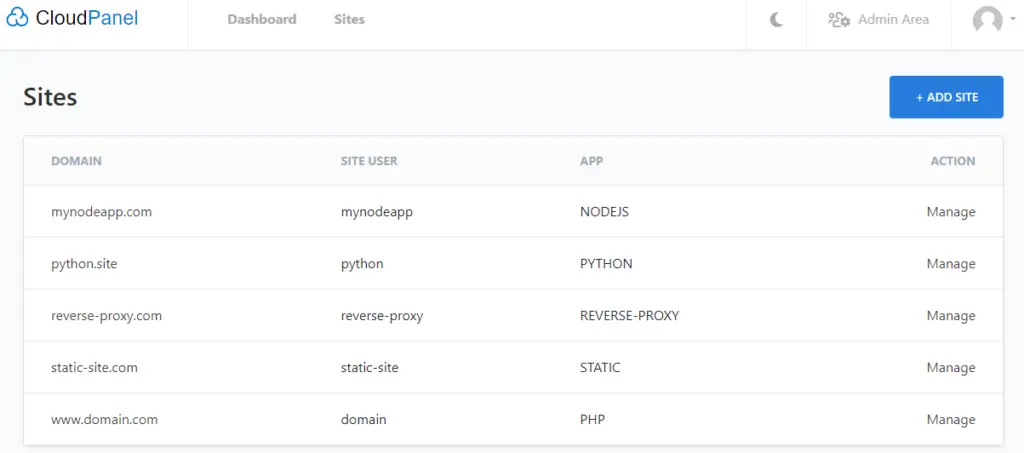
On the CloudPanel website, you can launch a live demonstration of the panel, and it will immediately become clear to you whether it suits you or not.
Pros:
Cons:
- Each site is isolated from others. When a site is created, you are provided with SSH/SFTP access.
- Clear and simple WordPress installation; after the installation is complete, you receive a text file with access credentials for SFTP, MySQL, and your site’s admin panel.
- Prepared reverse proxy template. A reverse proxy on Nginx is a highly requested feature among website owners!
- Python and Node.js applications can truly be run straight out of the box.
- Convenient switching of the panel’s interface language.
- Nginx Pagespeed configuration is integrated into the panel’s web interface.
- PhpMyAdmin works 🙂 unlike the constant glitches when opening it in ISP 6 and Hestia.
- No mail server. On the other hand, the panel will clearly use fewer resources, and for mail, you should use a dedicated email hosting.
- A domain alias can only be added manually via the Vhost Editor.
Choosing a VPS for CloudPanel
My choice in the VPS hosting sphere fell on Zomro and Aeza (AÉZA). It is pleasant that these providers value their customers and maintain favorable conditions even when base tariffs change. They offer a wide selection of configurations, allowing you to choose the optimal option for any needs. In addition, they frequently run promotions and offer special deals for regular customers, which allows for significant savings on server rentals. They have excellent technical support that is always ready to assist with any questions.
Operating systems used for writing this CloudPanel installation review: Ubuntu 22.04.4 LTS.
How to Install CloudPanel
Before launching the CloudPanel installer, it is necessary to update the system and install the required packages.
apt update && apt -y upgrade && apt -y install curl wget sudoNext, I recommend using scripts by copying them from the official guide. The guide breaks it down by OS with a choice of the preferred database.
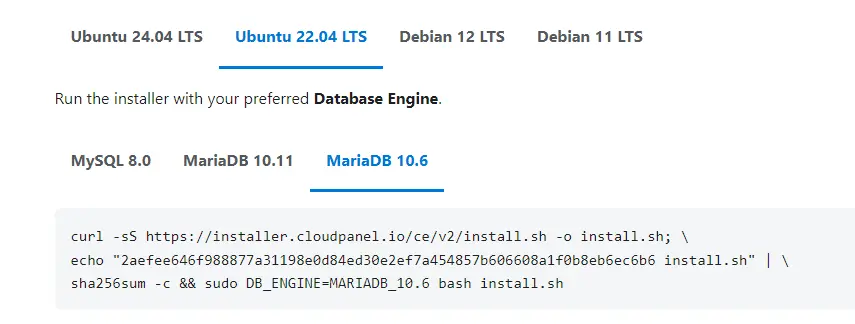
I chose Ubuntu 22 and MariaDB 10.6 because Ubuntu 24 is still a bit raw at this moment, and MariaDB version 10.6 because most of my sites run on this version and I absolutely do not want to experiment with SQL dumps of my sites. My final command to run the CloudPanel installer:
curl -sS https://installer.cloudpanel.io/ce/v2/install.sh -o install.sh;
echo "2aefee646f988877a31198e0d84ed30e2ef7a454857b606608a1f0b8eb6ec6b6 install.sh" | sha256sum -c && sudo DB_ENGINE=MARIADB_10.6 bash install.sh
After the panel is installed, you will see a message and a link to log in.
Danger: For security purposes, log into CloudPanel as quickly as possible to create an administrator user. There is a small time window during which bots can create a user. If possible, open port 8443 only for your IP via the firewall.
Initial Setup
Go to the link immediately, create a CloudPanel administrator, and specify their login, password, email, first name, last name, and time zone. Accept the terms and click on “Create User”. At the bottom of the page, you can change the language, for example, to Russian.
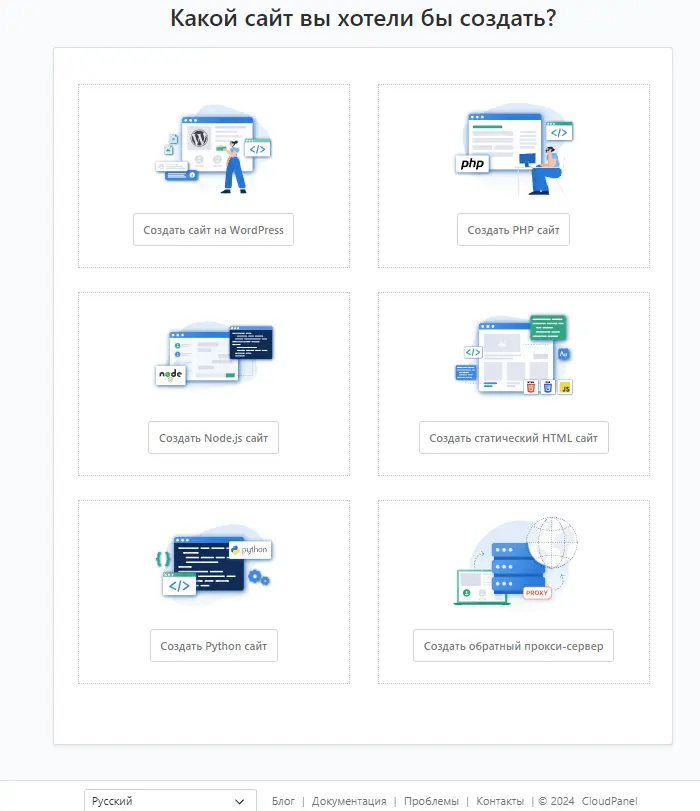
Further work with the panel is intuitively understandable: click the “ADD SITE” button and choose what you need — a WordPress site, a reverse proxy, or something else. Good luck!
How to Add a Domain Alias in the CloudPanel Panel
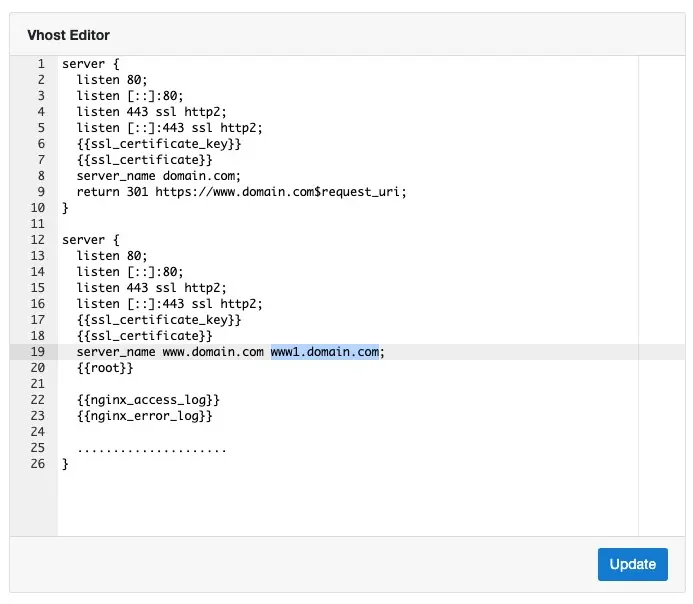
A form for adding a domain alias does not exist in CloudPanel. But you can do this by adding additional domains to your vhost. CloudPanel gives you full control over your nginx configuration instead of hiding it from you and only exposing some options via forms.
Your domain aliases can be added to the vhost by expanding the server_name value. Do not forget that you need to obtain an SSL certificate that includes all domains served by the site.
How to Update CloudPanel
CloudPanel comes as a Debian Package (deb), which allows for convenient updating of CloudPanel and all dependencies. You just need to run the utility by logging into the system via SSH as the root user:
clp-updateThis utility will update not only the CloudPanel packages but also the operating system packages, similar to the apt utility. After a successful update, you will receive the confirmation information.

How to Find the MySQL Root Password (master-credentials)
Sometimes you need to look at the MySQL settings from under the root user; for this, we need to find out the password. Run the command:
clpctl db:show:master-credentialsConclusion
If the configuration or features of this specific panel did not suit you, you can return to the main page to continue choosing a control panel. There, we have deployed an interactive configurator table: with its help, you can filter all available software by Nginx/Apache support, license type, presence of backups, or integration with WordPress/Docker in a single click.
I hope you found this guide useful. Let me give you one more important piece of advice: if you have installed any panel on your server, try to make all subsequent changes and website additions only through its web interface! And only in the most exceptional cases use the SSH console for manual editing of configuration files, otherwise you risk disrupting the internal workflow logic of the software.
 Top Temporary VPS for Testing & Experiments (2026)
Need a fast cloud server for a few hours or days? Deploy an isolated testing environment, run your scripts, and destroy it without any monthly commitments. Secure payments via Crypto (USDT) & PayPal supported.
• Exclusive Welcome Bonus: Get an extra 15% on your first balance top-up within 24 hours after registration.
• Best-in-class Storage VDS configurations with huge disk space for heavy data testing.
• High-speed hardware platform with a stable presence in the Netherlands (Europe).
