
Ubuntu remains one of the most popular Linux distributions for desktops and laptops, while Xubuntu is its lighter variant based on the Xfce desktop environment. This guide answers the timeless question: “Where can I safely download Ubuntu and Xubuntu?” and stays relevant across future releases.
Where to Download Ubuntu (Official Links)
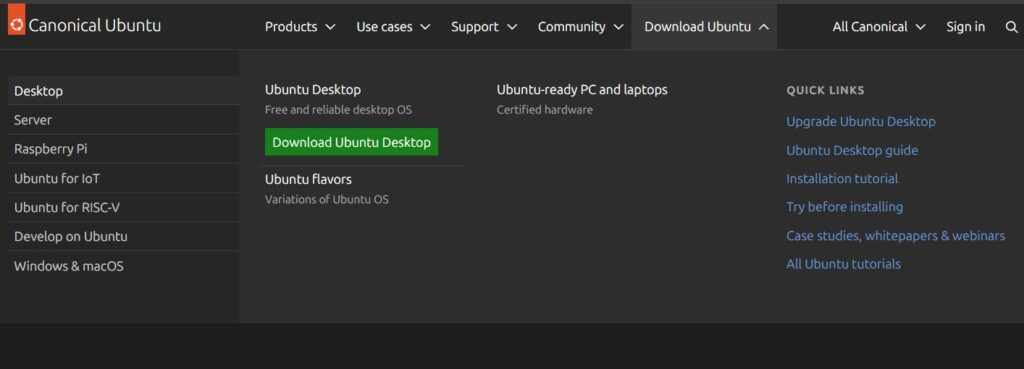
Ubuntu is a popular Linux distribution for desktops, laptops, and servers. If you just want a safe, official download link, use these pages:
- Ubuntu main download hub:
https://ubuntu.com/download - Ubuntu Desktop download page (latest LTS + latest regular release):
https://ubuntu.com/download/desktop - Full list of all Ubuntu releases (all versions, checksums, signatures):
https://releases.ubuntu.com
For almost all modern PCs and laptops, download the 64‑bit (amd64) Desktop ISO. LTS releases are recommended for most users because they receive long‑term security updates.
Where to Download Xubuntu
Xubuntu is an official Ubuntu flavor with the lightweight Xfce desktop, suitable for older or less powerful machines.
Use these official sources:
- Xubuntu download page (current releases):
https://xubuntu.org/download/ - Xubuntu images on Ubuntu releases server (for direct ISO and checksums):
https://releases.ubuntu.com
On the Xubuntu site, choose the Desktop ISO based on the latest Ubuntu LTS if you need a stable system, or the latest regular release if you want newer software and are fine with a shorter support period.
Which Image to Choose
When you open the download pages, you will typically see several options:
- Ubuntu Desktop ISO:
Full graphical desktop, ideal for everyday use on PCs and laptops. - Ubuntu Server ISO:
Installation without a graphical interface, designed for servers and VPS. - Xubuntu Desktop ISO:
Lightweight desktop with Xfce, good for low‑spec hardware.
If you are unsure, choose the Ubuntu Desktop ISO or the Xubuntu Desktop ISO and go with the latest LTS version.
What to Do After Downloading
After downloading the ISO:
- Verify the checksum on the download or releases page against your ISO file’s checksum.
- Write the ISO to a USB drive using Rufus (Windows), balenaEtcher, or a similar tool.
- Boot from the USB drive, test the live session, and then run the installer when you are ready to install Ubuntu or Xubuntu to disk.

Application Autostart in Xfce
XFCE4 Settings xfce4-settings-manager → Tab “Application Autostart”