How to install Ubuntu software center

Program and additional components in the operating system Ubuntu can be installed not only using the Terminal by entering commands, but also through the classical graphical solution — “application Manager”. Such a tool seems convenient for some users, especially those who have never dealt with the console and is experiencing difficulties with all these sets of incomprehensible text. By default, the “application Manager” built into the OS, however due to certain user actions or failures he may disappear and require re-installation. Let us review this process and discuss common errors.
Install Manager application in Ubuntu
As we already wrote above, “application Manager” feature in the standard build of Ubuntu and does not require additional installation. Therefore, before beginning this procedure, make sure that the program is definitely lacking. Go to menu, try to search and find the desired tool. If the attempt were vain, pay attention to the following statement.

We will use the standard console, giving detailed information about each team you need:


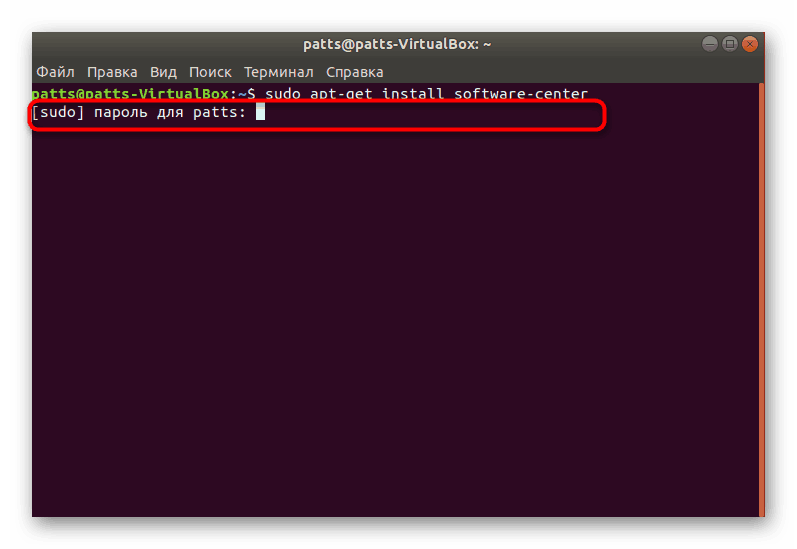
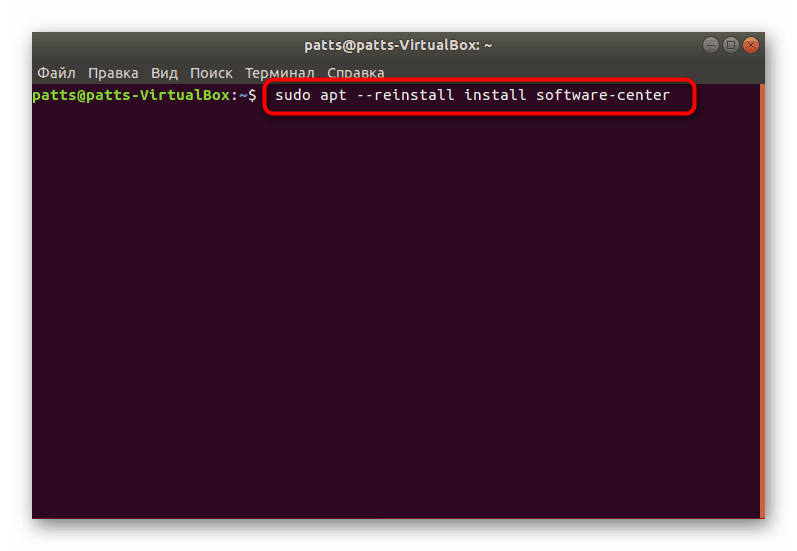
In addition, you can try to alternately enter the following commands in the event of a problem with this.
sudo apt purge software-center
rm-rf ~/.cache/software-center
rm-rf ~/.config/software-center
rm-rf ~/.cache/update-manager-core
sudo apt update
sudo apt dist-upgrade
sudo apt install software-center ubuntu-desktop
sudo dpkg-reconfigure software-center –force
sudo update-software-center

Finally we can recommend to use the command rm ~/.cache/software-center -R, and then unity –replace &to clear the cache in “app Manager” — this should help to get rid of various kinds of errors.
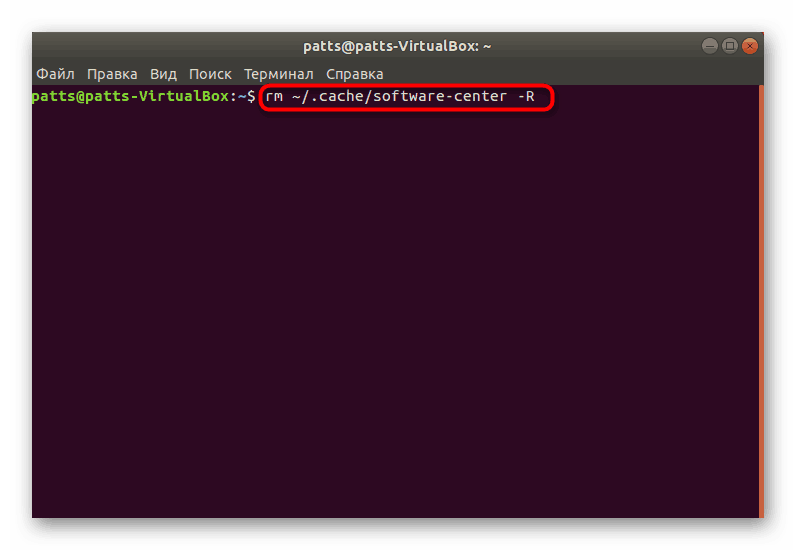
As you can see, nothing complicated in the installation of the reporting tool there is, but sometimes there are difficulties with its performance, which can be solved following the steps listed above just a couple of minutes.